Widgets
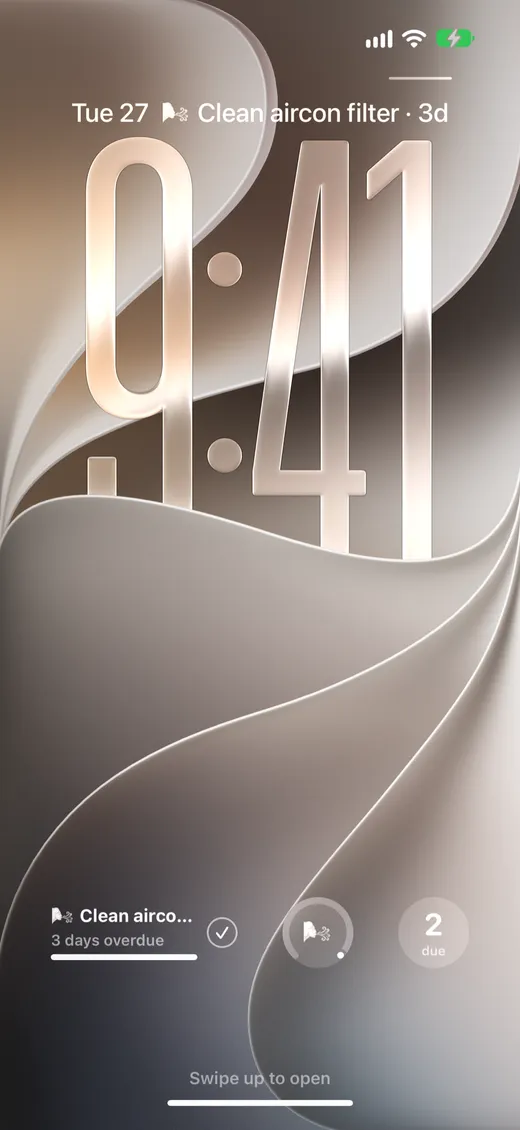
Widgets show the tasks that need you next, without opening Dustly. Tap the check on a row to mark it done.
Home Screen and desktop widgets
The medium widget shows your three most urgent tasks. The large one shows six, with the dust meter on top. Both work on iPhone, iPad and Mac.
Tap the check button on a row to mark that task done. Tap anywhere else on a row to open the task in Dustly.
Add a widget
- iPhone and iPad: touch and hold an empty spot on the Home Screen, tap "Edit" › "Add Widget", then choose Dustly.
- Mac: right-click the desktop and choose "Edit Widgets", then find Dustly.
- Pick the medium or large size and add it.
Lock Screen widgets
On iPhone, Lock Screen widgets show the next task above the clock, or below it with its progress, its color ring or the number of tasks due. Touch and hold the Lock Screen, tap "Customize" › "Lock Screen", then tap the widget area and choose Dustly.